Short answer. Promote a podcast by cutting short clips from each episode and giving every clip a way back to the full episode. On YouTube, set the episode as each Short's related video, which Studio adds for you when the Short is cut from the episode there. On Spotify, attach one clip of 15 to 90 seconds to the episode itself. Everywhere else, put a link to the show in the post, your bio and Story stickers, as Apple advises.
- On YouTube, a podcast is a playlist of full episodes, and YouTube asks you to keep clips out of it: clips go out as Shorts of their own and point back to the episode.
- A Short cut from the episode with YouTube Studio's own tool gets the episode as its related video unless the Short is private, unlisted or made for kids; a Short made elsewhere can be linked by hand once the channel has advanced features.
- Links typed into a Short's description or comments cannot be tapped. The related video, shown under your channel handle, is the link a Short's viewers can follow.
- Spotify lets you attach one clip to each scheduled or published episode: 15 to 90 seconds, at least 768 × 1024 pixels, an MP4 or MOV file of up to 1 GB, with audio.
- Spotify counts Plays from clips, the plays within 24 hours of someone viewing your clip, and asks that a clip keep listeners on Spotify: no links to other sites and no asking for follows or likes.
- Apple's advice for everywhere else is to share excerpts and sound bites from each episode and to put links to the podcast in social posts, bios and Instagram Story stickers.
A clip is how most people first meet an episode, and it promotes the podcast only if it leads them back to the full conversation. YouTube, Spotify and Apple Podcasts each say in their own help pages, read on November 9, 2026, how a clip on their apps can do that.
Give every clip a way back to the episode
Each platform has its own way back: a related video on a YouTube Short, the episode itself on Spotify, and a link in the post or your bio everywhere else. Set it up for every clip, because a clip without it leaves the listener with one minute of the show and no easy way to the rest.
| Platform | Where the clip goes | The way back | Where it comes from |
|---|---|---|---|
| YouTube | A Short of its own, outside the podcast playlist | The episode as the Short's related video, a link under your channel handle | YouTube Help: Podcast discovery tips, and Add a related video to your YouTube Shorts |
| Spotify | Attached to the episode, one clip each | The episode itself, and your show page | Spotify for Creators: Clips |
| Everywhere else | Your own posts | A link to the podcast in the post, your bio and Instagram Story stickers | Apple Podcasts for Creators: Connect on social media |
Keep the clips out of the podcast itself. On YouTube a podcast is a playlist, and its episodes are the videos in it. YouTube's podcast discovery tips ask for full-length episodes only and say to avoid mixing in clips, other shows or uploads from other channels, so each clip goes out as a Short of its own and points to the episode from there.
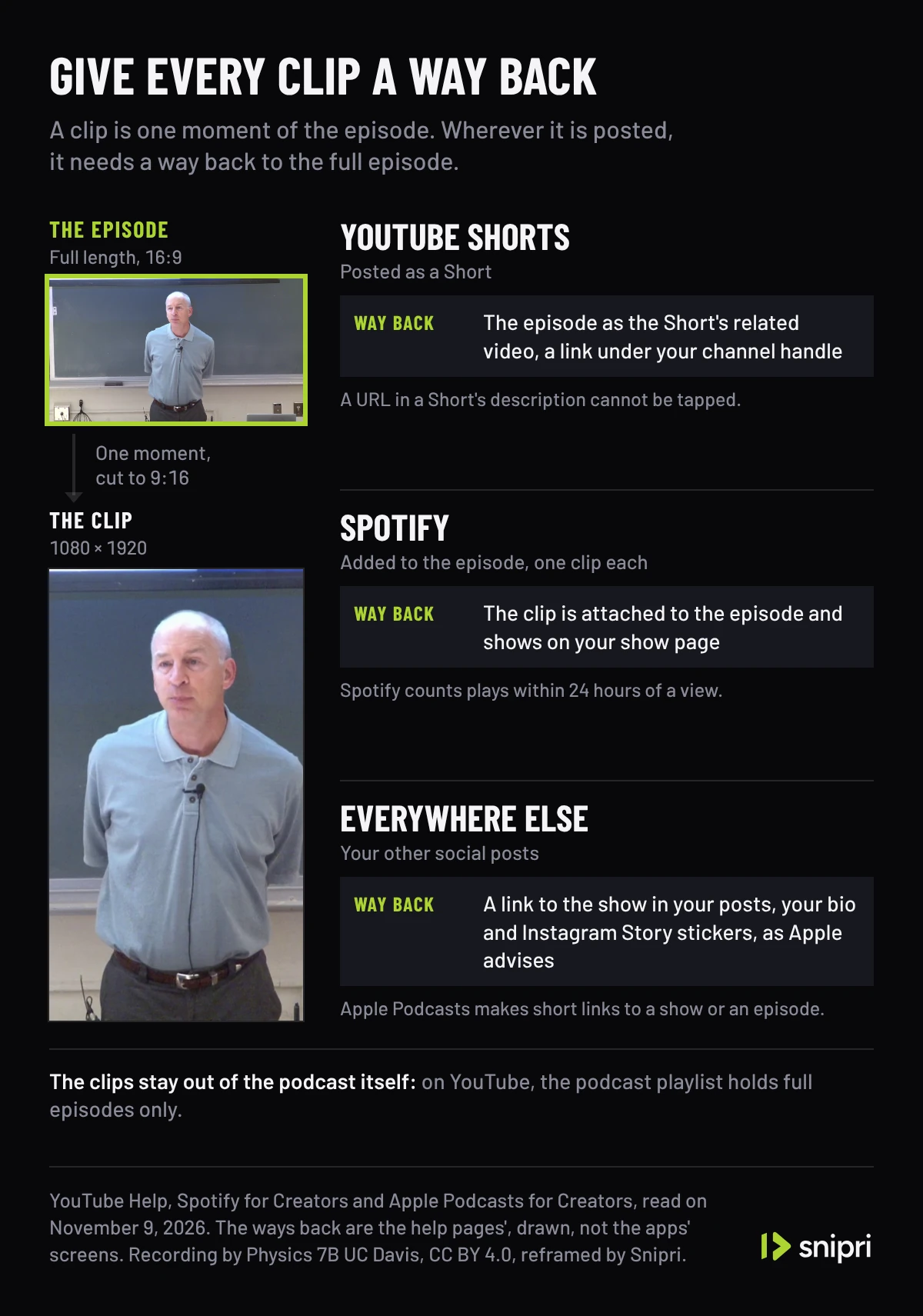
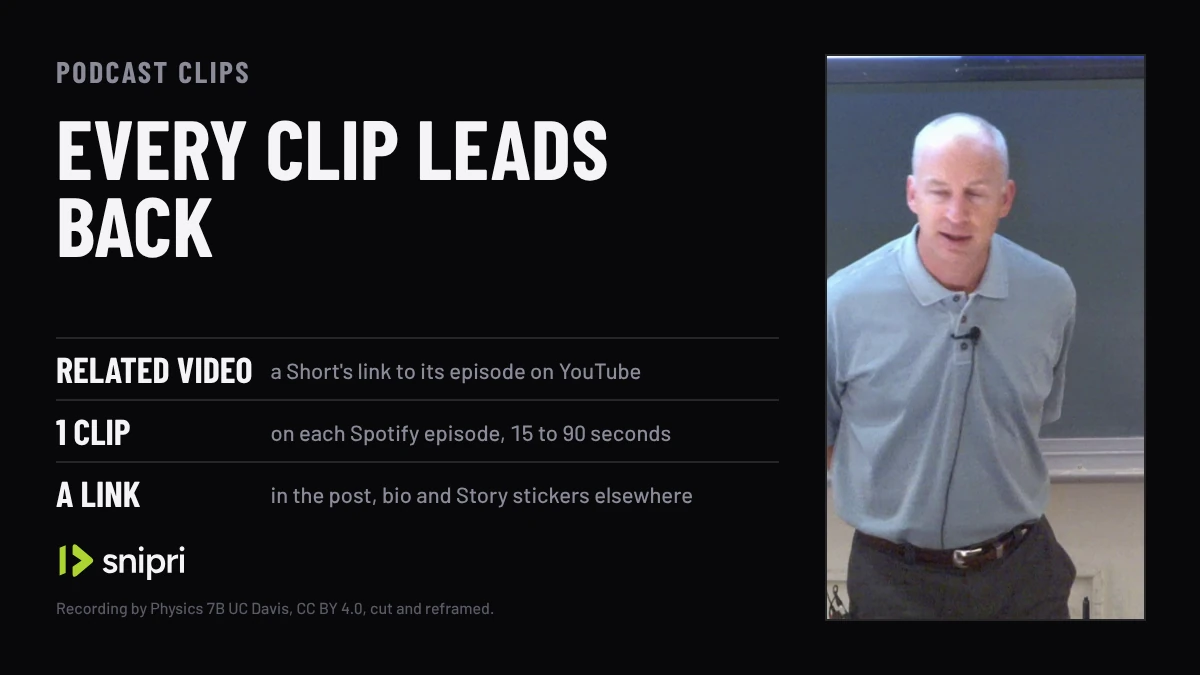
A clip Snipri reframed from a recording of a lecture plays as your podcast clip through three beats: beside the recording, which stands for the episode, with one moment marked on a drawn bar; as a Short, with the episode drawn under it as its related video and the links a viewer can and cannot tap; and on its episode in Spotify, with Snipri's clip lengths on Spotify's 15 to 90 second band. The recording has no sound, so the clip has no captions; the bar, the links and the scale are drawn.
Recording: “Lecture 9 part 1” by Physics 7B UC Davis, from the YouTube UGC dataset, under CC BY 4.0, cut and without sound.
Link each Short to its episode on YouTube
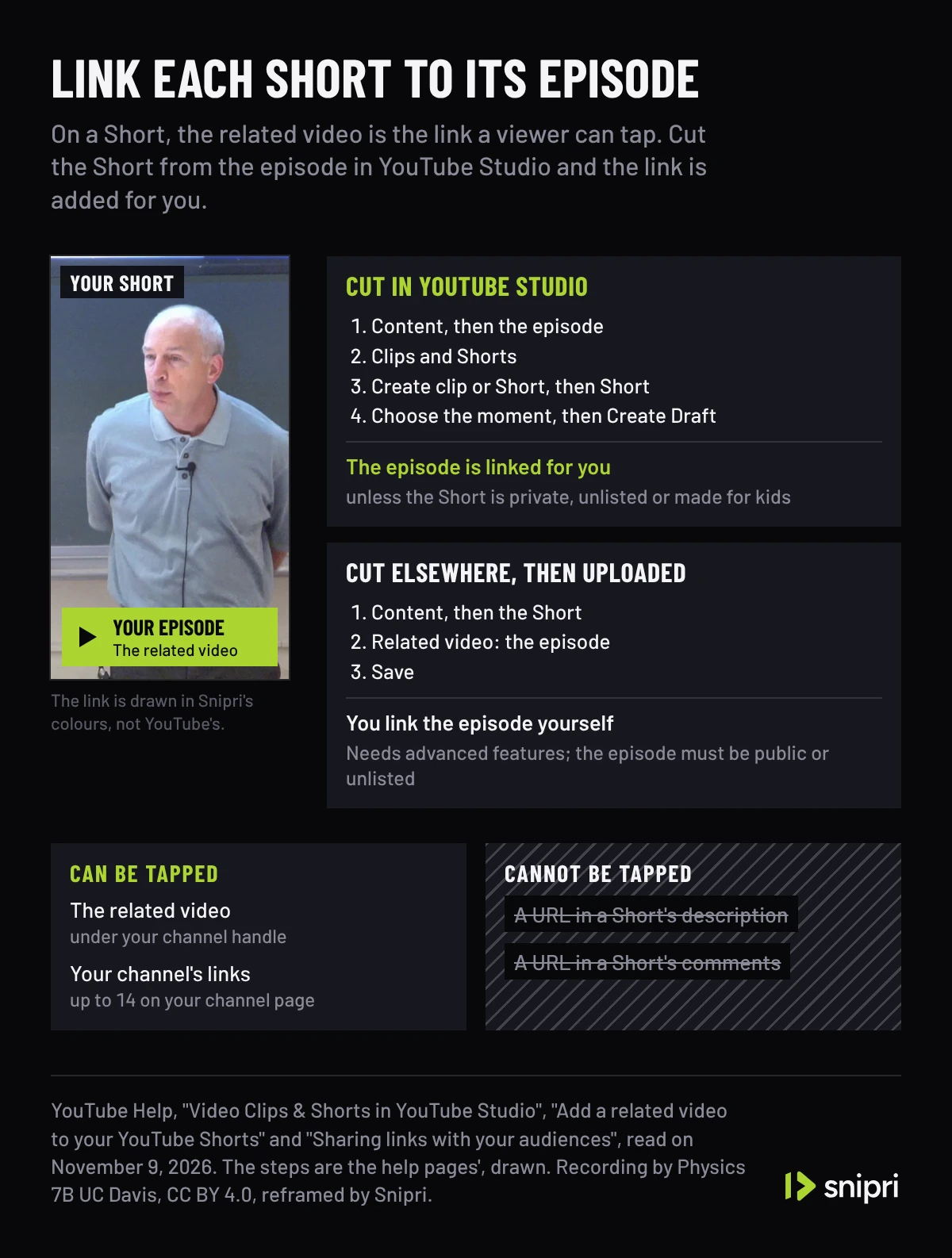
On a Short, the related video is the link that works: it shows under your channel handle, and a viewer can tap through to the episode. A URL typed into a Short's description or comments cannot be tapped, because YouTube makes those links non-clickable to reduce spam and scams.
There are two ways to set it. If you cut the Short from the episode in YouTube Studio, the link is added for you. YouTube's page on clips and Shorts in Studio gives the steps:
- In YouTube Studio, open Content, then the episode.
- Select Clips and Shorts, then Create clip or Short, then Short.
- Choose the moment from the transcript or by its start and end times. In some countries and languages, Studio also suggests moments.
- Preview the Short, select Create Draft and finish it in the upload dialog.
YouTube adds the source video as the related video of any Short made this way, unless the Short is private, unlisted or made for kids. The same page says you are not penalized for using your own content in a clip or a Short.
If the Short was cut elsewhere and uploaded, link it by hand:
- Sign in to YouTube Studio and select Content.
- Click the Short.
- Choose the episode as its Related Video, then select Save.
Adding a related video by hand needs advanced feature access, and the episode has to be public or unlisted and follow YouTube's Community Guidelines. Your channel page can also show up to 14 links, a place for the show's other homes, such as its Spotify and Apple Podcasts pages.
Attach one clip to each episode on Spotify
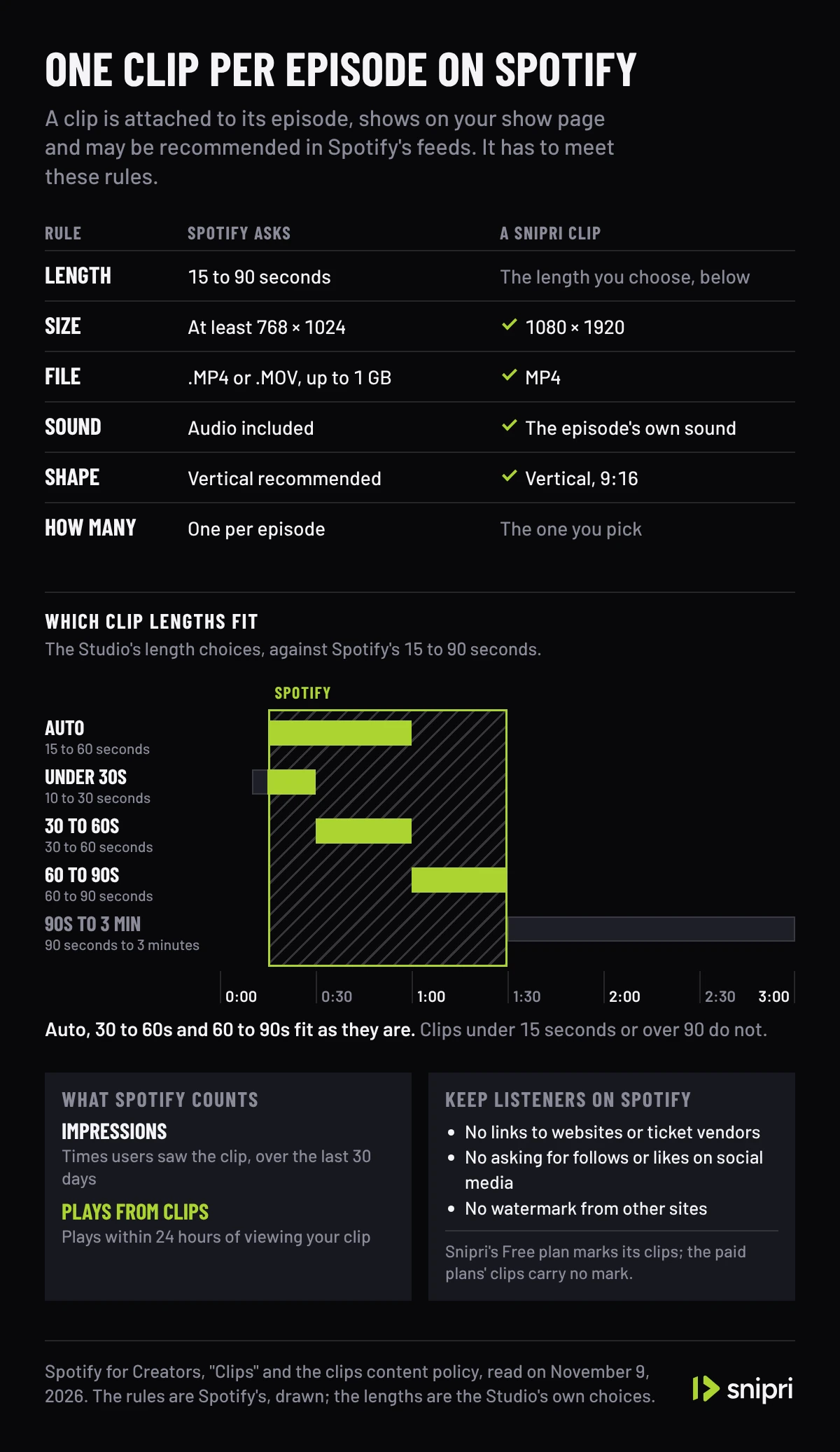
Spotify for Creators lets you attach one clip to each episode, scheduled or published. The clip shows on your show page and may be recommended in the Home and Podcast feeds, in Browse and in the Now Playing View. Spotify's clips content policy sets what it takes:
| Rule | What Spotify asks | Where it comes from |
|---|---|---|
| Length | 15 to 90 seconds | Spotify for Creators: Clips content policy |
| Size | At least 768 × 1024 pixels | Spotify for Creators: Clips content policy |
| File | MP4 or MOV, no bigger than 1 GB | Spotify for Creators: Clips content policy |
| Sound | Audio included | Spotify for Creators: Clips content policy |
| Shape | Vertical recommended, horizontal supported | Spotify for Creators: Clips |
| How many | One clip per episode | Spotify for Creators: Clips |
The policy also asks that a clip keep listeners on Spotify: no sending them to websites or ticket vendors, no asking for follows or likes on social media, and no recycled material carrying another site's watermark. Clips from Snipri's Free plan carry a watermark and the paid plans' clips carry none, which is worth knowing before you post to Spotify.
Once a clip is up, only its description can be edited, so check the cut before you upload it. An episode without a clip can still show a preview, a square excerpt of up to 60 seconds that Spotify makes itself; a clip you add takes its place. Spotify then counts what the clip does: Impressions is how many times users saw it over the last 30 days, and Plays from clips counts the plays within 24 hours of someone viewing your clip.
Everywhere else, put the link where it can be followed
Apple's advice for social media is plain: plug the podcast as a habit, share excerpts and sound bites from each episode, and put links to the podcast in your posts, your bios and even Instagram Story stickers. Apple Podcasts for Creators makes short links to a show or to one episode for that, and its Promotional Tools page adds social posts, web embeds and QR codes. A clip posted anywhere else works the same way as on YouTube and Spotify: the post carries the moment, and the link carries the listener to the episode.
Cut the clips from one recording
One episode can hold several moments worth a clip, and one recording can give the clips for every platform above. Snipri's podcast clip maker reads the episode's transcript for answers that stand alone, reframes each to 1080 × 1920 and burns the captions in, with a written reason for every clip it keeps; AI clip selection explains how it picks them. Clips run 15 to 60 seconds by default. Before a job you can choose 10 to 30 seconds, 30 to 60 seconds, 60 to 90 seconds or 90 seconds to 3 minutes instead. For Spotify, the default and the 30 to 60 and 60 to 90 second choices fit as they are, while the shortest can give a clip under 15 seconds and the longest one over 90.
Each clip is a 1080 × 1920 MP4 with the episode's own sound, so it meets Spotify's size, format and sound rules as it comes. Post it as a Short with the episode as its related video, attach the best one to the episode on Spotify, and give every other post a link to the show.
The clip in this guide's pictures and video is one Snipri reframed from a recording of a lecture, published for reuse with credit. The recording has no sound, so the clip has no captions.
Which moments are worth cutting is in how to make podcast clips that stand alone, and how to film an episode so it clips well is in how to start a video podcast. More guides are in podcast clips and video podcasts.
Common questions
Should podcast clips go in the YouTube podcast playlist?
No. YouTube's podcast discovery tips ask for full-length episodes only in a podcast, and to avoid mixing in clips, other shows or uploads from other channels. Post each clip as a Short of its own and set the episode as its related video.
Can you put a link in a YouTube Short's description?
You can type one, but nobody can tap it: to reduce spam and scams, YouTube makes URLs in Shorts descriptions and comments non-clickable. The Short's related video, which shows as a link under your channel handle, is the one that works.
How long can a Spotify podcast clip be?
Between 15 and 90 seconds. Spotify's clips content policy also asks for at least 768 × 1024 pixels, an MP4 or MOV file of up to 1 GB, and audio, and an episode takes one clip.
Does YouTube penalize Shorts cut from your own episode?
No. YouTube's page on clips and Shorts in YouTube Studio says you are not penalized for using your own content in a clip or a Short, and Shorts cut there are linked to their source video.
How do you know whether clips bring listeners to the episode?
Spotify reports it for its own clips: Plays from clips counts the plays within 24 hours of someone viewing your clip. Elsewhere, compare how many listeners reach the episode from similar clips over several posts rather than from one.
Sources
- YouTube Help: Podcast discovery tips, checked November 9, 2026.
- YouTube Help: Video Clips & Shorts in YouTube Studio, checked November 9, 2026.
- YouTube Help: Add a related video to your YouTube Shorts, checked November 9, 2026.
- YouTube Help: Sharing links with your audiences, checked November 9, 2026.
- Spotify for Creators: Clips, checked November 9, 2026.
- Spotify for Creators: Clips content policy, checked November 9, 2026.
- Apple Podcasts for Creators: Connect on social media, checked November 9, 2026.
- Apple Podcasts for Creators: Promotional Tools, checked November 9, 2026.
Cihan DüzgörenBuilds and runs Snipri, and wrote this guide