Short answer. There is no single best time: YouTube's help pages name no hour or day for posting Shorts. The best time is when your own viewers are on YouTube, which YouTube Studio shows under Analytics, then Audience, for the last 28 days. Schedule Shorts for those hours, then compare each one's views with your Shorts' typical performance in the Content tab.
- YouTube's help pages on audience, scheduling and Shorts analytics name no best hour or day to post a Short.
- The report When your viewers are on YouTube, under Analytics, then Audience, shows when your viewers were online across YouTube over the last 28 days, and YouTube counts viewers of every format in it, Shorts included.
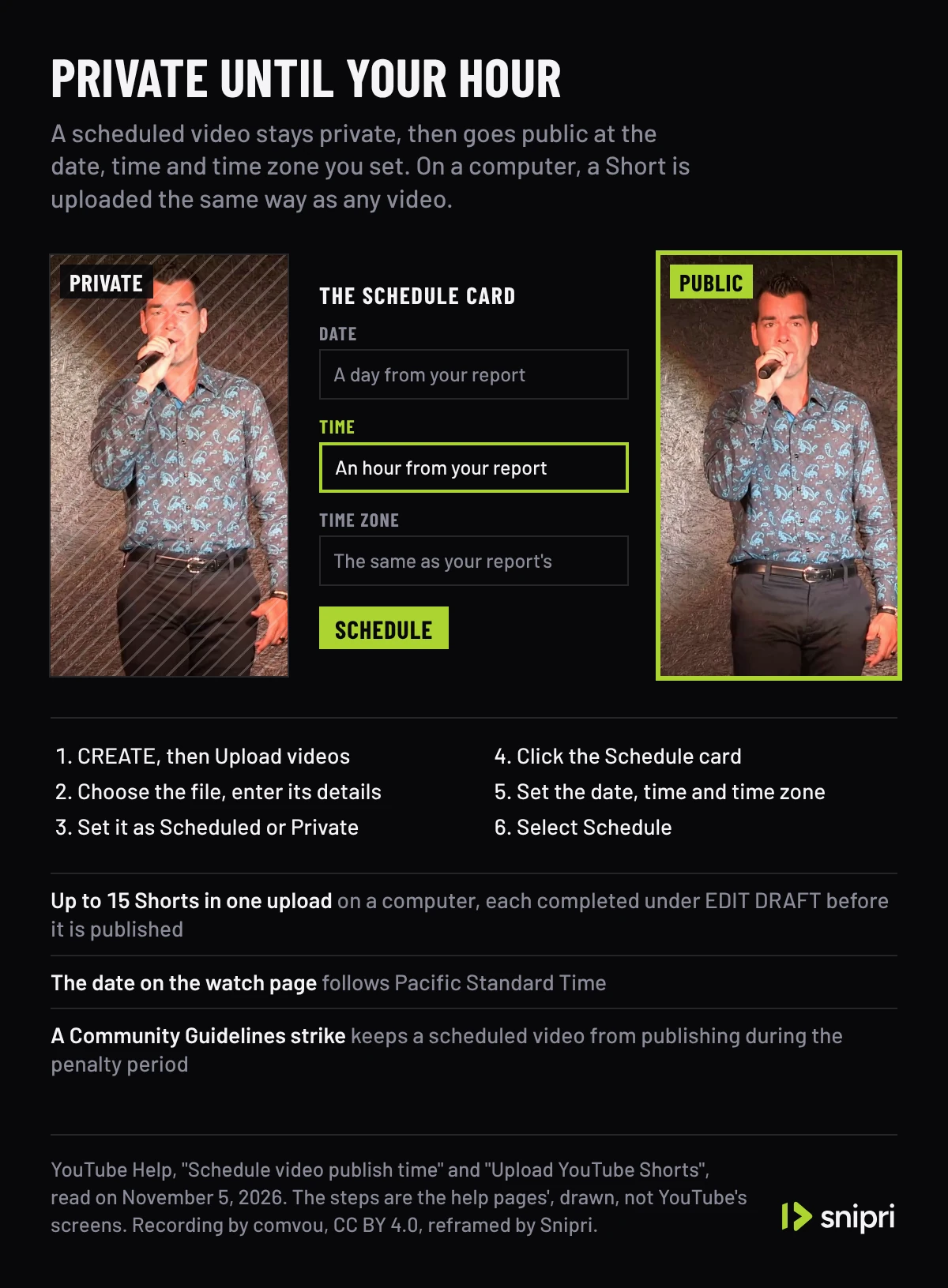
- Scheduled publishing keeps a video private until the date, time and time zone you set; on a computer, a Short goes through the same upload page as any video.
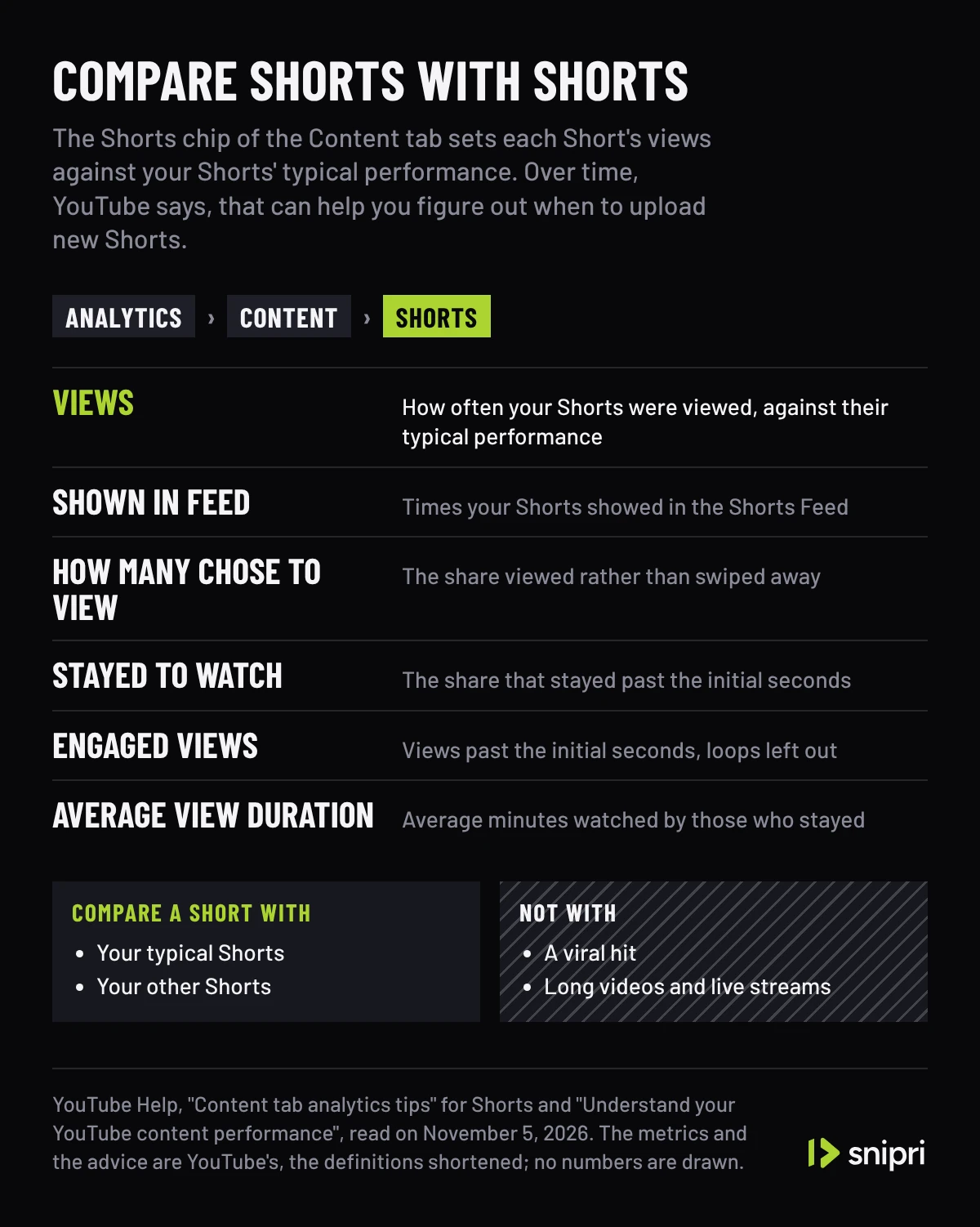
- The Shorts chip of the Content tab compares each Short's views with your Shorts' typical performance, which YouTube says can help you figure out when to upload new Shorts.
- Compare Shorts with Shorts: YouTube advises comparing videos of the same type and not measuring each one against a viral hit.
Any list of best hours is drawn from other channels' audiences. YouTube's own help pages, read on November 5, 2026, point to yours instead: a report of when your viewers are on YouTube, scheduled publishing, and the Shorts numbers that let you compare one posting time with another.
YouTube names no best hour
YouTube's help pages on audience, scheduling and Shorts analytics name no best hour or day to post a Short. What they give you are three tools in YouTube Studio, and together they make a test you can run on your own channel.
| Tool | Where it is | What it does | Where it comes from |
|---|---|---|---|
| When your viewers are on YouTube | Analytics, then Audience | Shows when your viewers were online across YouTube in the last 28 days | YouTube Help: Understand your YouTube audience |
| Scheduled publishing | The Schedule card on the upload page | Makes a private video public at the date, time and time zone you set | YouTube Help: Schedule video publish time |
| The Shorts chip | Analytics, then Content | Sets each Short's views against your Shorts' typical performance | YouTube Help: Content tab analytics tips |
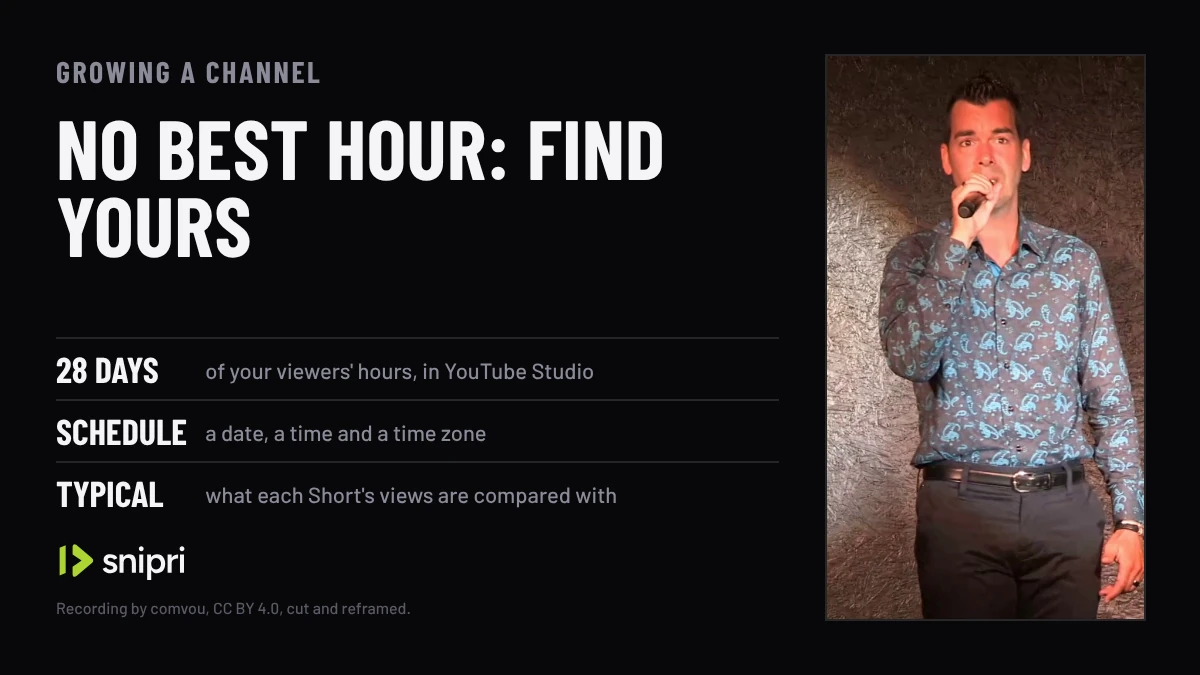
A Short Snipri reframed from a recording of a singer plays as your Short while three steps are drawn beside it: the path to When your viewers are on YouTube, over the last 28 days; the Schedule card's date, time and time zone, with the Short turning from private to public; and four of the Content tab's Shorts metrics, Views against your typical Shorts first. The recording has no sound, so the clip has no captions; the steps, fields and metric names are drawn from YouTube's help pages, not its screens.
Recording: “Hallelujah - Éric Chenard” by comvou, from the YouTube UGC dataset, under CC BY 4.0, cut and without sound.
Find when your viewers are on YouTube
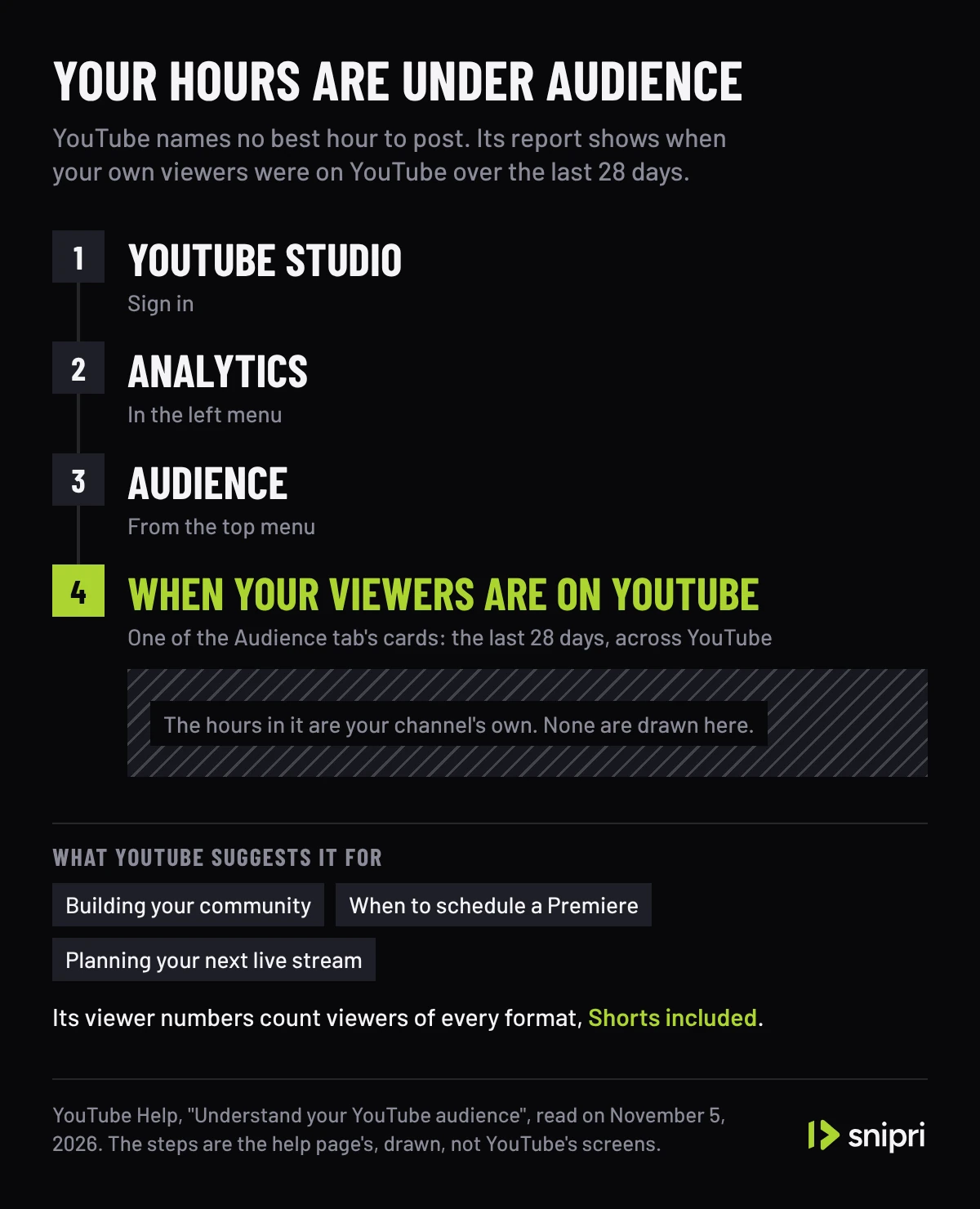
The report sits in YouTube Studio's Audience tab and covers the last 28 days. YouTube's page on understanding your audience gives the way in:
- Sign in to YouTube Studio.
- In the left menu, select Analytics.
- From the top menu, select Audience.
- Find the report When your viewers are on YouTube.
YouTube says the report shows when your viewers are online across YouTube in the last 28 days, and suggests it for building your community, choosing when to schedule a Premiere and planning your next live stream. Shorts are not on that list, but the same page says that viewers who watch any of your channel's formats are included in its viewer numbers, Shorts among them. The hours in the report belong to everyone who watches the channel, the viewers of your Shorts included.
Two cautions before you read hours off it. The page does not say which time zone the report uses, while the Schedule card asks you for one, so make sure the two match. And the report says when your viewers are online across YouTube, not when they watch Shorts or your channel in particular, so its busiest hours are where a test starts, not its result.
Schedule a Short for those hours
Scheduled publishing keeps a video private and makes it public at a specific time. On a computer, YouTube's page on uploading Shorts sends a Short through the same CREATE, then Upload videos path as any other video, so the scheduling steps apply to it as they stand:
- Sign in to YouTube Studio.
- Select CREATE, then Upload videos.
- Select the file and enter its details.
- Set the video as Scheduled or Private on the upload page.
- Click the Schedule card and set the date, time and time zone.
- Select Schedule.
YouTube Studio takes up to 15 short videos in one upload from a computer, and each needs its details completed under EDIT DRAFT before it is published, so a batch of Shorts can be spread across several hours in one sitting. A scheduled time can be changed later from Content, again through EDIT DRAFT, while the video is still private.
Two details from the same pages. The date on a video's watch page is based on Pacific Standard Time, so a video can show a different date there from the one where you live. And if your account has a Community Guidelines strike, a scheduled video won't publish during the penalty period.
Compare your Shorts with each other
Once Shorts have gone out at different hours, the Content tab shows how each one did. YouTube's page on content performance puts it under Analytics, then Content, where Shorts have a chip of their own. There, YouTube's analytics tips for Shorts explain, each Short's views are compared with your Shorts' typical performance, and over time that comparison can help you spot high-performing Shorts, anticipate seasonal changes and figure out when to upload new Shorts.
| Metric | What YouTube says it counts | Where it comes from |
|---|---|---|
| Views | How many times your Shorts were viewed, compared with your Shorts' typical performance | YouTube Help: Content tab analytics tips |
| Shown in feed | How many times your Shorts showed in the Shorts Feed | YouTube Help: Content tab analytics tips |
| How many chose to view | The share of times viewers viewed your Shorts rather than swiping away | YouTube Help: Content tab analytics tips |
| Stayed to watch | The share of times viewers stayed past the initial seconds of a Short | YouTube Help: Understand your YouTube content performance |
| Engaged views | Views past the initial seconds, not counting loops | YouTube Help: Understand your YouTube content performance |
| Average view duration | Average minutes watched among those who stayed to watch | YouTube Help: Understand your YouTube content performance |
Views alone count every start: since August 24, 2026, YouTube counts a view the moment a video starts to play, Shorts included. Stayed to watch and engaged views show whether the people who saw a Short at a given hour kept watching it.
YouTube's tips add two rules for the comparison. Compare videos of the same type, because audience behaviour differs across formats, so a Short is measured against Shorts, not long videos or live streams. And avoid comparing each video against a viral hit. One Short at a new hour tells you about that Short as much as about the hour, so try each hour with more than one Short before you settle on it.
Shorts to test with, from one recording
A test of posting times needs several Shorts that are alike enough to compare. One long recording, such as an episode, a talk or a stream, can hold several moments worth a Short. Snipri's YouTube Shorts maker finds them, reframes each to 1080 × 1920 and burns the captions in, with a written reason for every clip it keeps; AI clip selection explains how it picks them. Clips run 15 to 60 seconds by default. Before a job you can choose 10 to 30 seconds, 30 to 60 seconds, 60 to 90 seconds or 90 seconds to 3 minutes instead. Download the clips, upload them together and schedule each one for a different hour from your report.
The clip in this guide's pictures and video is one Snipri reframed from a recording of a singer on a stage, published for reuse with credit. The recording has no sound, so the clip has no captions.
What makes a Short worth posting in the first place, from the opening to the payoff, is in how to make YouTube Shorts from long videos, and how Shorts earn once they are up is in YouTube Shorts monetization. More guides on growing a channel are in growing a channel with short clips.
Common questions
What is the best day to post YouTube Shorts?
YouTube does not name one. Its report of when your viewers are on YouTube covers your own channel's last 28 days, so the days worth trying are the ones it shows, each tried with more than one Short.
What time zone does YouTube use when you schedule a Short?
The one you choose: the Schedule card asks for a date, a time and a time zone. YouTube's help page on the audience report does not say which zone the report uses, so make sure the hour you schedule and the hour you read are in the same one. The date on a video's watch page follows Pacific Standard Time.
Does the time you post a Short change how it does?
YouTube does not say how much timing matters. It does say that a Short's views, compared with your typical Shorts, can help you figure out when to upload new Shorts, which makes timing something to test on your own channel.
Can you change the time of a scheduled Short?
Yes, while it is still private. YouTube's scheduling page says to find the video under Content in YouTube Studio, click EDIT DRAFT and choose the new time under Schedule.
Sources
- YouTube Help: Understand your YouTube audience, checked November 5, 2026.
- YouTube Help: Schedule video publish time, checked November 5, 2026.
- YouTube Help: Upload YouTube Shorts, checked November 5, 2026.
- YouTube Help: Content tab analytics tips (Shorts), checked November 5, 2026.
- YouTube Help: Understand your YouTube content performance, checked November 5, 2026.
Cihan DüzgörenBuilds and runs Snipri, and wrote this guide