Short answer. To clip a YouTube video, select More and then Clip under it to share 5 to 60 seconds that play on a loop from the video's page, or use Edit into a Short in the YouTube app to make a Short from up to 60 seconds of your own public video. For vertical clips with captions you can post anywhere, upload a file you own to a clipping tool such as Snipri.
- The Clip button marks 5 to 60 seconds of a video and plays them on a loop from the video's own watch page, shared as a link, an embed, a post or an email.
- A clip lasts as long as its video: it is removed when the original is deleted, set to private or breaks YouTube's Community Guidelines, and creators can switch clipping off.
- Edit into a Short, in the YouTube app, takes up to 60 seconds of a public long-form video you uploaded and links the Short back to it.
- YouTube Studio's video clips tool cuts clips or Shorts from your own long-form videos too, with suggested moments in ten countries and seven languages.
- A video downloaded from YouTube Studio is 720p or 360p, so a 9:16 crop of it is enlarged 2.67 or 5.33 times; clip the original file instead.
- Snipri finds the moments in a file you own, cuts each to 9:16 around the speaker and burns the captions in, and you download MP4 files to post anywhere.
YouTube has two ways to clip a video, and a third way starts from your own file. YouTube's rules below come from its help pages, read on November 3, 2026, and Snipri's from its own code.
Which way should you use?
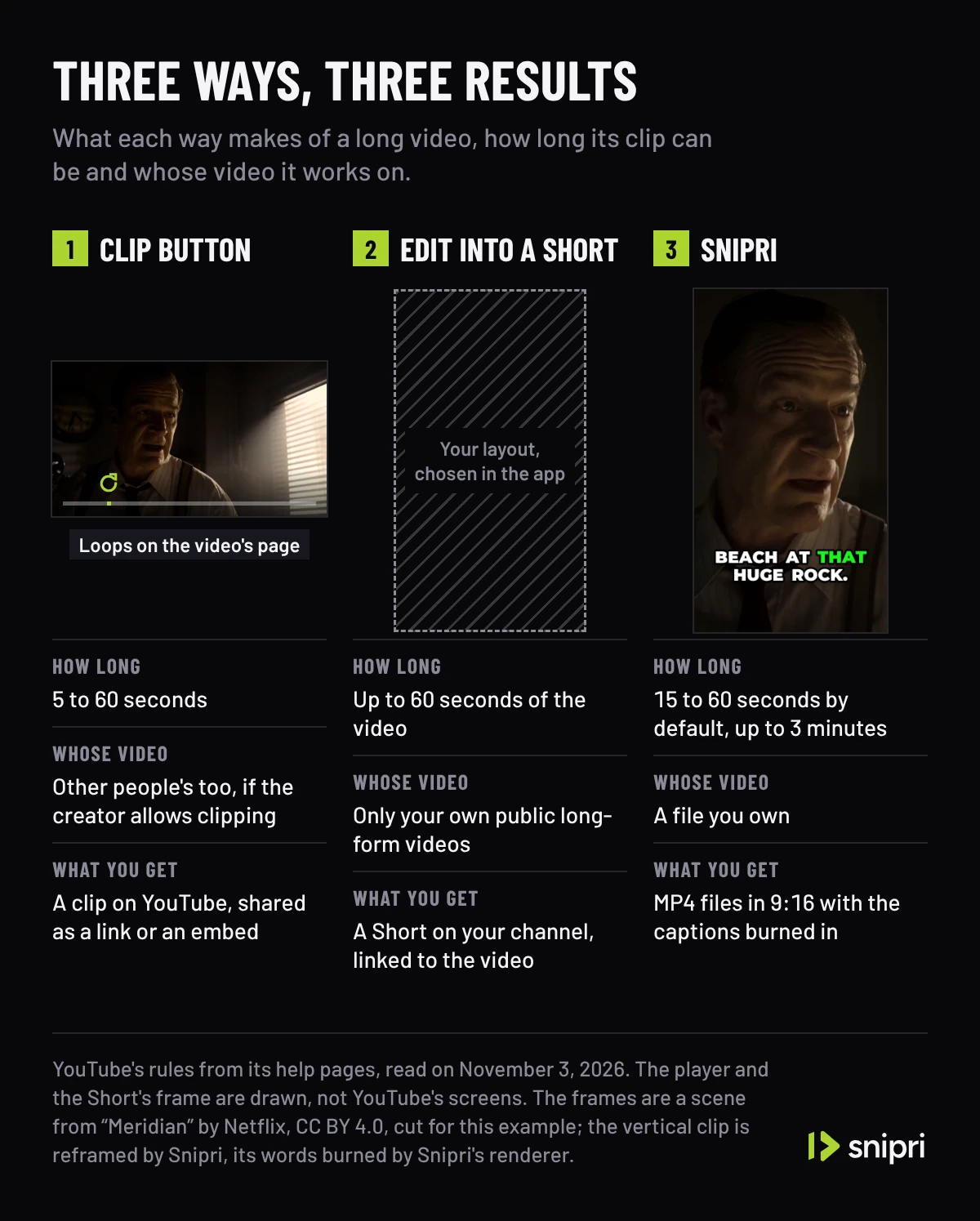
Use the Clip button to share a moment of a video you are watching, Edit into a Short to turn part of your own video into a Short, and a clipping tool when you want vertical clips with captions that you can post anywhere.
| Way | Whose video | How long | What you get |
|---|---|---|---|
| The Clip button | Yours or anyone's, if the creator allows clipping | 5 to 60 seconds | A link or embed that loops the part on the video's page |
| Edit into a Short | Only your own public long-form videos | Up to 60 seconds of the video | A Short on your channel, linked back to the video |
| A clipping tool such as Snipri | A file you own or may use | A length you choose before the job | MP4 files in 9:16 with the captions burned in |
How do you clip a YouTube video with the Clip button?
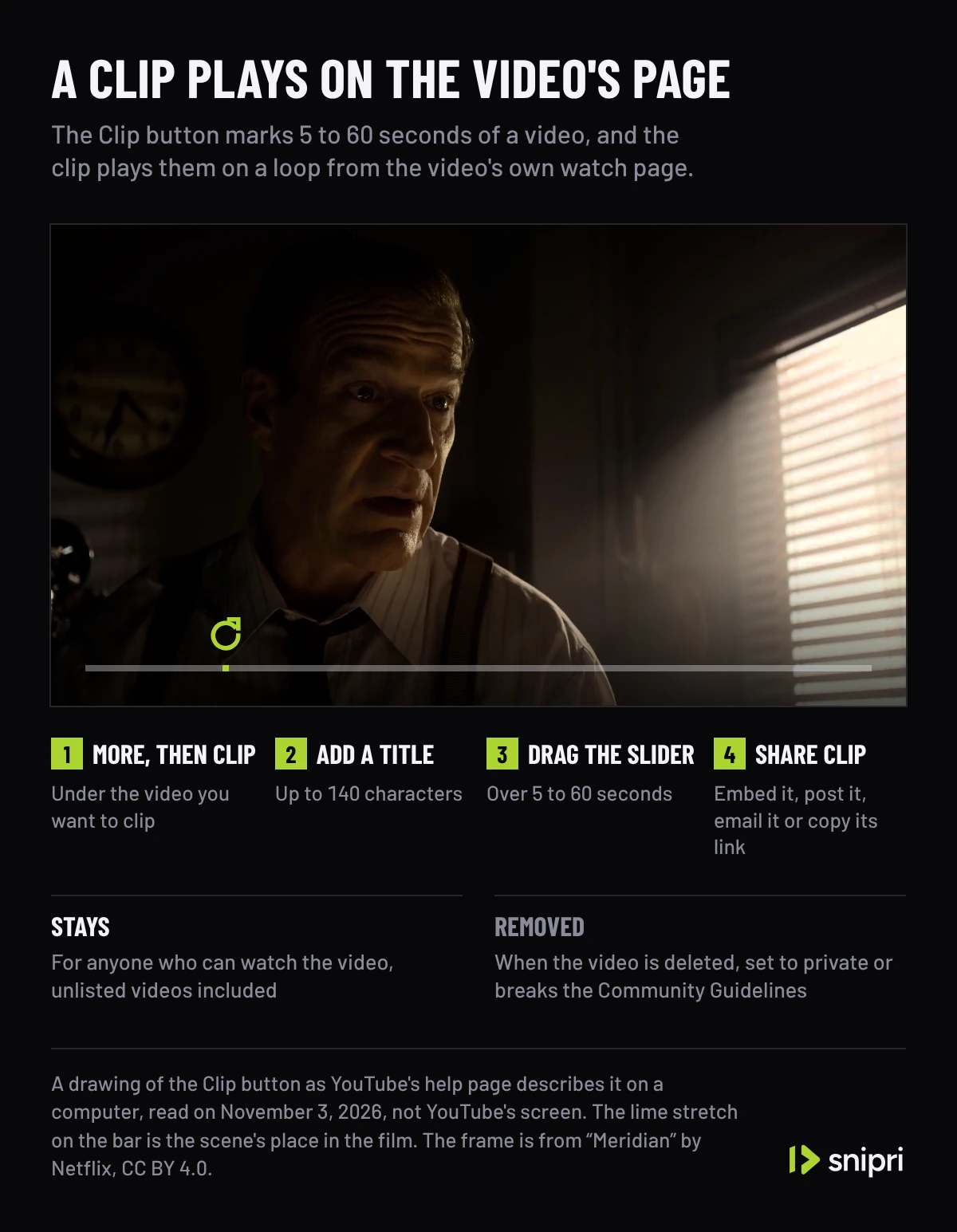
On a computer, the Clip button sits under the video, behind More:
- Sign in and open the video. It can be yours or someone else's.
- Select More, then Clip.
- Add a title of up to 140 characters.
- Select the part. Drag the slider over 5 to 60 seconds of the video.
- Select Share clip, then embed it, post it to a social network, email it or copy its link.
A clip is public. Anyone who can watch the original video can watch and share it, and it plays its part on a loop from the original video's watch page. It lasts as long as the video does: a clip is removed when the original is deleted, set to private or breaks YouTube's Community Guidelines, while clips of unlisted videos remain available. A live stream can be clipped only when it has DVR. Creators find every clip of their videos on their Library page.
Clipping is on by default. To stop viewers clipping your videos, open YouTube Studio's settings, select Channel and then Advanced settings, untick Allow viewers to clip my content under Clips, and save. To stop only some people, add them to your channel's hidden users.
How do you turn your own video into a Short?
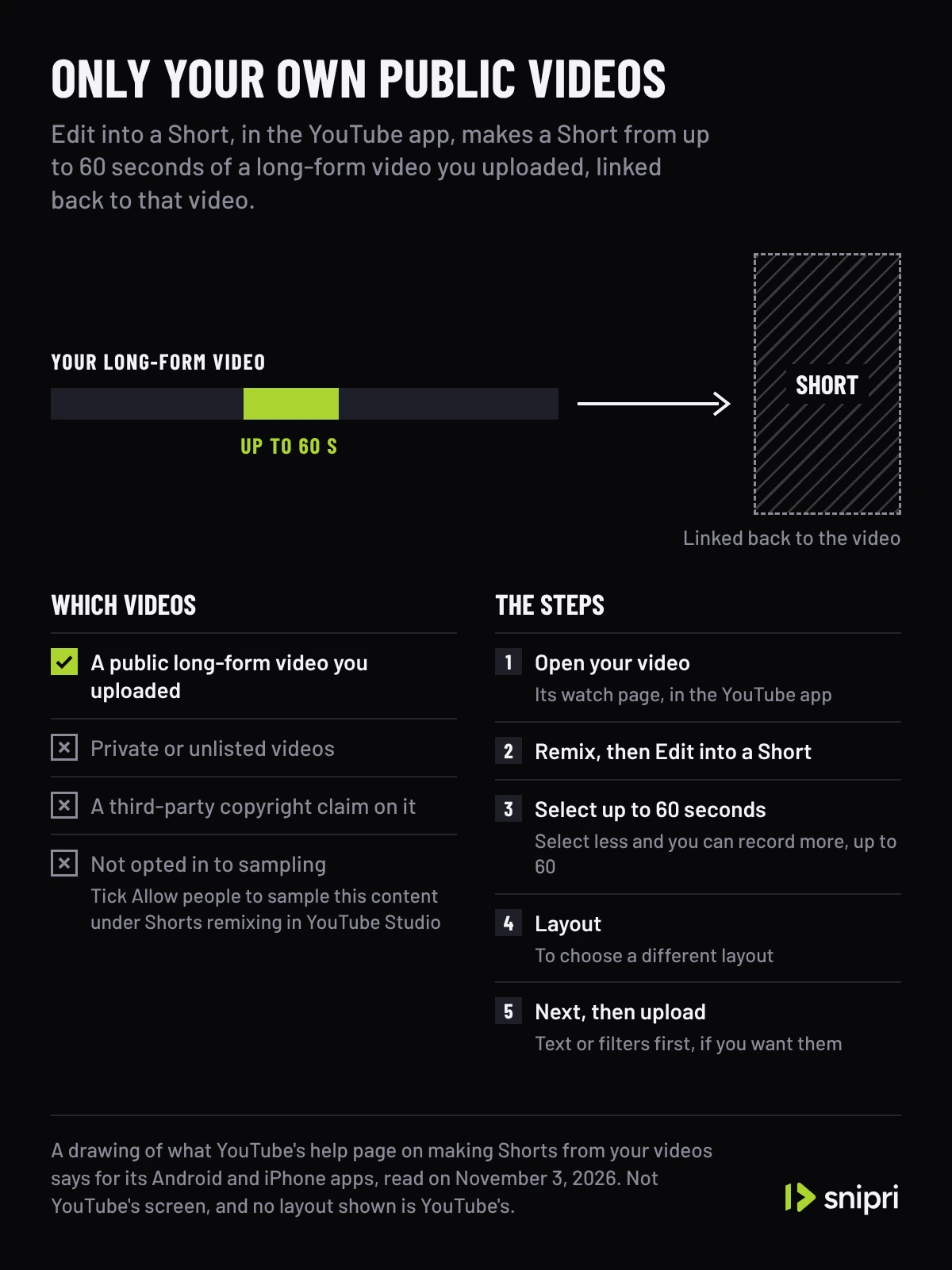
Edit into a Short, in the YouTube app for Android, iPhone and iPad, makes a Short from part of a long-form video you uploaded:
- Open your video's watch page in the app.
- Tap Remix, then Edit into a Short.
- Select up to 60 seconds. Select less, and you can record more in the Shorts camera, up to 60 seconds.
- Tap Layout to choose a different layout.
- Tap Next, add text or filters if you want them, and upload the Short.
It works only on public long-form videos you uploaded. Private and unlisted videos, and videos with a third-party copyright claim, cannot be used. If the option is missing on a video that qualifies, opt the video in to sampling: in YouTube Studio, open Content, select the video, select Show more, tick Allow people to sample this content under Shorts remixing, and save. The Short is linked back to your original video, which gives its viewers a way to find the rest.
YouTube Studio has a second tool for your own videos. Its video clips tool cuts segments from a long-form video, chosen on the transcript or by timestamps, and publishes them as clips or Shorts; a Short made with it gets captions from the transcript, where available. Its suggested moments are available in ten countries and in seven languages: English, French, German, Hindi, Korean, Portuguese and Spanish.
How do you make vertical clips with captions from a YouTube video?
Both of YouTube's ways keep the clip on YouTube. For a clip you can also post on TikTok, Instagram or LinkedIn, you need a vertical video file, and the best place to start is the original recording of your video, not a copy downloaded from YouTube.
Upload the file to Snipri. It transcribes the speech, picks the moments that make sense on their own, cuts each to a 9:16 window that follows the speaker and burns the captions in. Clips run 15 to 60 seconds by default. Before a job you can choose 10 to 30 seconds, 30 to 60 seconds, 60 to 90 seconds or 90 seconds to 3 minutes instead. You download each clip as an MP4 file and post it where you like. Snipri's YouTube clip maker page has more on clipping YouTube videos.
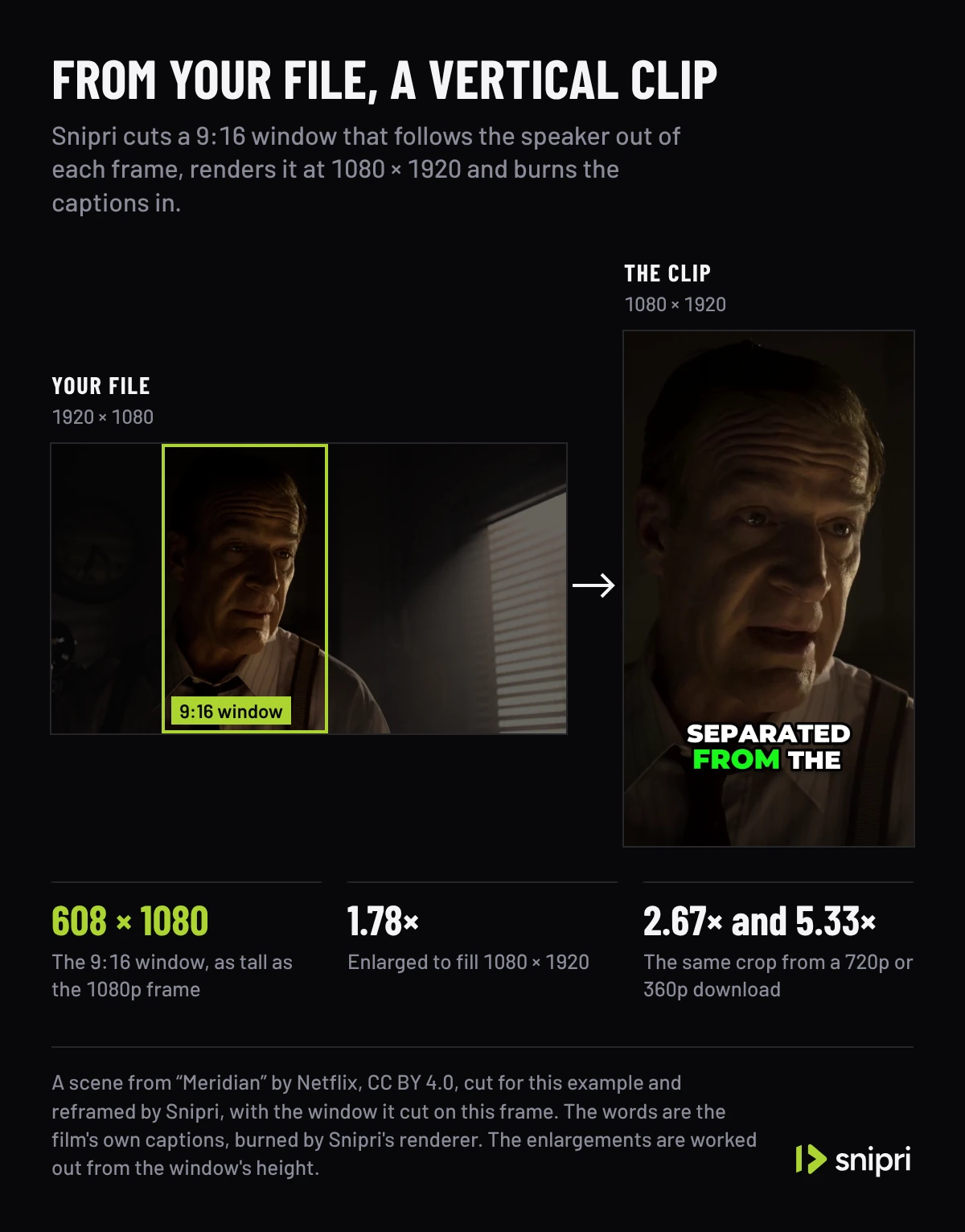
Start from the original because a vertical clip is a crop. In a 1080p frame, a 9:16 window as tall as the frame is 608 × 1080 pixels, enlarged 1.78 times to fill a 1080 × 1920 clip. YouTube Studio lets you download a video you uploaded, up to five times a day, but as an MP4 at 720p or 360p, depending on the video's size. The same crop of that download is 405 × 720 or 203 × 360 pixels, enlarged 2.67 or 5.33 times, and every enlargement softens the picture.
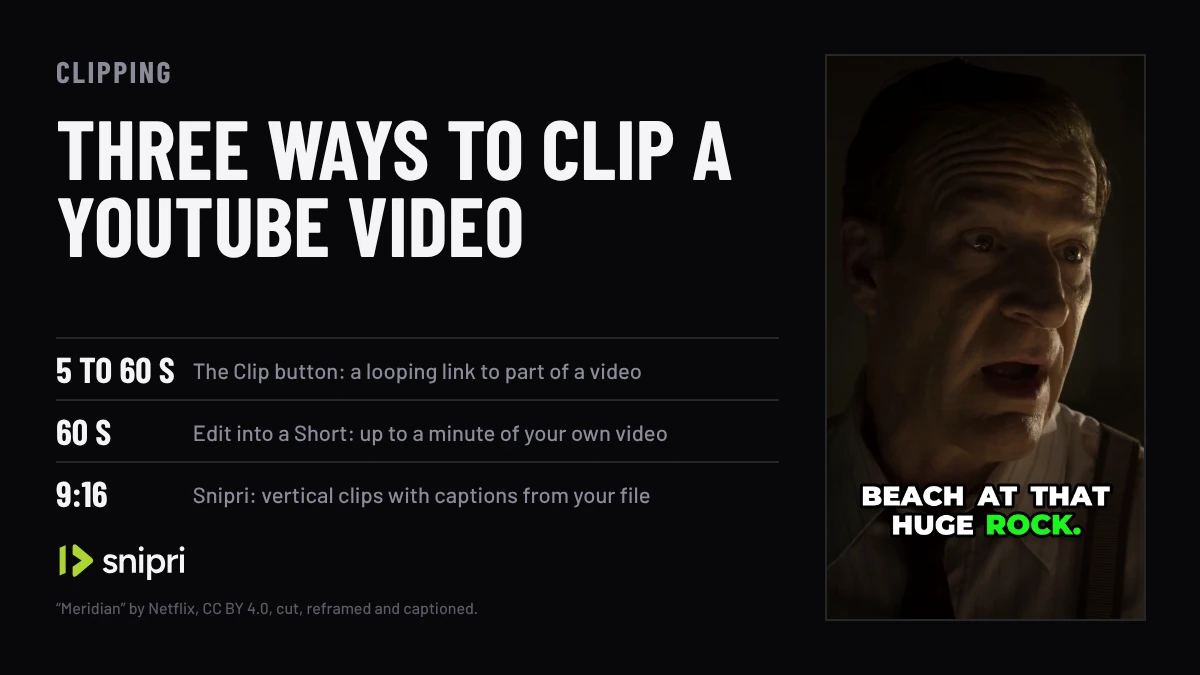
The video plays one scene through all three ways: in a drawn player that loops it as a clip does, beside the rules for a Short, and as the vertical clip Snipri reframed from it.
A scene from the film Meridian taken through the three ways. First in a drawn player, played to its end and back to its start as a clip loops, its 6.1 seconds marked on a scale of what a clip may be, 5 to 60 seconds; then beside the videos Edit into a Short takes and an empty frame for the Short; then as the vertical clip Snipri reframed from it, beside the file with the 9:16 window it followed. The player, its bar, the scale and the Short's frame are drawn; the captions are the film's own words, burned by Snipri's renderer.
Film: “Meridian” by Netflix, from Netflix Open Content, under CC BY 4.0, cut, reframed and captioned, without sound.
For the rest of the work, from picking the moments to measuring them, read How to make YouTube Shorts from long videos, and for the length limits, How long can YouTube Shorts be. More guides like these are under Clipping.
Common questions
Can I clip someone else's YouTube video?
With the Clip button, yes, unless its creator switched clipping off: clipping is on by default, and the clip plays from the original video's page for anyone who can watch that video. Edit into a Short works only on your own videos, and a clipping tool needs a file you have the right to use.
How long can a YouTube clip be?
Between 5 and 60 seconds, by YouTube's help page on clips. Edit into a Short takes up to 60 seconds of your video, and when you select less you can record more, up to 60 seconds.
Can I download a YouTube clip?
YouTube's help page on clips lists four ways to share one: embed it, post it to a social network, email it or copy its link. It names no download. For a file, clip a video you own from its original recording.
Why can't I find Edit into a Short on my video?
The option needs a public long-form video you uploaded, with no third-party copyright claim, that is opted in to sampling. To opt in, tick Allow people to sample this content under Shorts remixing in the video's details in YouTube Studio.
Sources
- YouTube Help: Learn about managing Clips, checked November 3, 2026.
- YouTube Help: Create YouTube Shorts from your videos, checked November 3, 2026.
- YouTube Help: Video Clips & Shorts in YouTube Studio, checked November 3, 2026.
- YouTube Help: Download YouTube videos that you've uploaded, checked November 3, 2026.
Cihan DüzgörenBuilds and runs Snipri, and wrote this guide